
Common Teachable Mistakes and How to Avoid Them

Even experienced creators fall into predictable traps on Teachable. This guide covers the most common Teachable mistakes and how to avoid them before they hurt your sales.
Table of Contents
- Why Teachable Setup Errors Cost More Than You Think
- Mistake 1: Leaving the Default Teachable Domain Active
- Mistake 2: Skipping the Welcome Email Sequence
- Mistake 3: Using Only One Pricing Option
- Mistake 4: Ignoring the Sales Page Until Launch Week
- Mistake 5: Not Testing the Checkout Before Launch
- Mistake 6: Publishing Incomplete Courses
- Mistake 7: Overlooking the Affiliate Program Setup
- Mistake 8: Not Collecting Student Emails Independently
- Quick-Reference: Mistakes and Fixes at a Glance
- How Teachable Compares to Alternatives on These Issues
- Frequently Asked Questions
If you’re building a course on Teachable, the platform itself is rarely the problem. Common Teachable mistakes and how to avoid them is one of the most searched topics among new creators — and for good reason. Small setup errors in pricing, email, or checkout can quietly kill conversions for months before anyone notices. Here’s what to watch for and how to fix it fast.
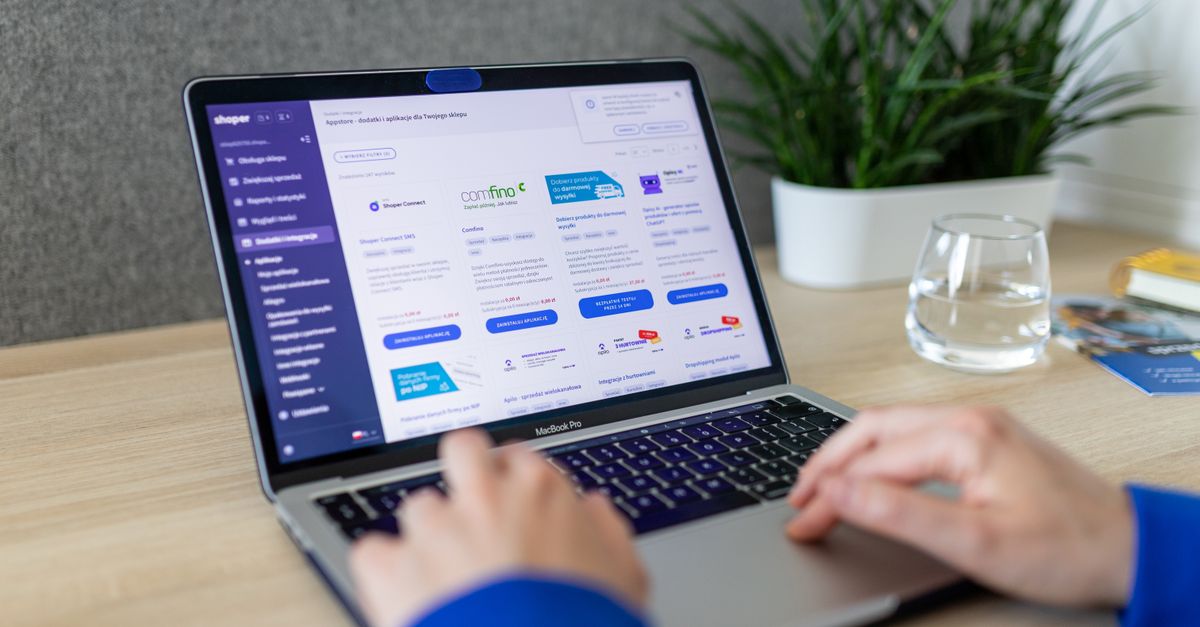
Photo: Andy Barbour (Pexels)
Why Teachable Setup Errors Cost More Than You Think
Teachable powers thousands of courses across almost every niche [verify], but its flexibility is also a trap. The platform gives you enough rope to hang yourself: custom domains, multiple pricing options, bundled products, affiliate tools. Get one piece misconfigured and you lose students without knowing why.
These aren’t dramatic failures. They’re quiet leaks — a checkout page that loads slowly, a welcome email that never sends, a course priced without considering perceived value. The fixes are almost always simple once you know what to look for.
Mistake 1: Leaving the Default Teachable Domain Active
Teachable assigns every school a free subdomain like yourschool.teachable.com. Many creators launch, drive traffic, and never connect a custom domain.
Why it matters: A branded URL signals legitimacy. courses.yourbrand.com builds trust; yourschool.teachable.com reminds students they’re on a third-party platform, which reduces confidence before they’ve even seen your content.
The fix: In your Teachable admin, go to Settings → Domains and add your custom domain. You’ll point a CNAME record at Teachable through your domain registrar (GoDaddy, Namecheap, etc.). The process takes about 20 minutes. Propagation can take up to 48 hours, so do this before you launch — not after.
Mistake 2: Skipping the Welcome Email Sequence
Teachable includes a basic automated email when a student enrolls. Most creators leave it set to the default “You’ve been enrolled in [course name]” message and call it done.
That’s a missed opportunity. Students who receive a warm, structured welcome email — one that sets expectations, explains how to navigate the course, and reminds them why they bought — are more likely to complete lessons and leave reviews.
The fix: Write a custom enrollment email inside Course → Emails → Enrollment Email. Keep it under 200 words. Include: a direct link to Lesson 1, one sentence on what they’ll accomplish, and a reply-to address so students can reach you. If you want a full sequence, connect Teachable to Kit (formerly ConvertKit) or ActiveCampaign via Zapier and trigger a 3–5 email onboarding flow from the enrollment event.
Mistake 3: Using Only One Pricing Option
A single flat price is the most common Teachable mistake for creators who are newer to selling digital products. Offering only one price removes the anchoring effect and leaves money on the table from students who would happily pay more for extras.
The fix: Teachable supports multiple pricing tiers per course natively. A standard approach:
- One-time payment — full access, no extras ($197)
- Payment plan — 3 × $75 (costs more overall, increases accessibility)
- VIP tier — course + group coaching calls + a bonus resource pack ($397)
You don’t need to build three separate courses. Create one course, then set up three pricing options under Course → Pricing. The VIP tier can include a Zoom link or a bundled product.
Mistake 4: Ignoring the Sales Page Until Launch Week
Teachable has a built-in sales page editor. It’s functional but limited — no A/B testing, no advanced blocks. Creators often use it as a placeholder and never upgrade it.
The fix: For higher-ticket courses ($97+), consider building your sales page in a dedicated tool and embedding your Teachable checkout. Thrive Architect (part of Thrive Suite, $299/year) or Elementor Pro ($59/year) both let you build a conversion-optimized page on WordPress and link directly to your Teachable checkout URL.
This gives you full control over layout, testimonial sections, and page speed — all of which affect conversion rates.
Mistake 5: Not Testing the Checkout Before Launch
This sounds obvious. It isn’t. A significant number of creators launch a course, announce it to their email list, and discover a broken checkout link only after confused replies start arriving.
The fix: Before any launch email goes out, buy your own course using a real credit card (or a test coupon set to 100% off). Walk through the entire flow:
- Landing page → sales page → checkout
- Payment confirmation email
- Student dashboard access
- First lesson loads correctly
If you use a coupon for testing, delete it afterward or set an expiry date. Leaving a 100% off coupon active is one of the common Teachable mistakes that can cost real revenue.
Mistake 6: Publishing Incomplete Courses
Teachable marks courses as “published” or “draft” at the course level, not the lesson level. You can publish a course with empty lectures and students will enroll and see blank content.
The fix: Before you set a course to published, audit every section. In Course → Curriculum, open each lecture and confirm it has content (video, text, PDF, or quiz). Use Teachable’s Preview as Student feature to see exactly what an enrolled student sees. Do this on both desktop and mobile.
Mistake 7: Overlooking the Affiliate Program Setup
Teachable’s built-in affiliate program (available on the Pro plan at $119/month, billed annually) lets other creators and marketers promote your course for a commission. Most creators either ignore it entirely or enable it without setting clear commission rates and cookie windows.
The fix: Go to Affiliates → Settings and set:
- A commission percentage (30–40% is standard for digital products)
- Cookie duration (30 days minimum)
- A brief affiliate welcome email with swipe copy, your course link, and your target audience description
Recruiting even five active affiliates can meaningfully expand your reach without paid ads.
Mistake 8: Not Collecting Student Emails Independently
This is the most structurally dangerous mistake on this list. Teachable owns your student data inside their platform. If you ever migrate to a different course platform — Thinkific, Podia, Kajabi — you need to export and re-import that list, and you can’t rely on Teachable to maintain your relationship with students long-term.
The fix: Connect Teachable to a dedicated email marketing platform from day one. Kit’s free plan supports up to 10,000 subscribers [verify] and integrates with Teachable via Zapier or the native integration. Every new student should land in your email list, tagged by course name. That list is an asset you own regardless of what platform you use.
Quick-Reference: Mistakes and Fixes at a Glance
| Mistake | Impact | Fix | Effort |
|---|---|---|---|
| Default subdomain only | Reduced trust | Connect custom domain in Settings | Low |
| Generic enrollment email | Low completion rates | Write custom welcome + connect Kit/AC | Low |
| Single price option | Lost revenue | Add payment plan + VIP tier | Low |
| Weak sales page | Low conversion | Build in Thrive Architect or Elementor | Medium |
| Untested checkout | Failed sales at launch | Full purchase flow test before launch | Low |
| Publishing incomplete content | Poor student experience | Preview as Student before publishing | Low |
| Ignoring affiliate program | Missed reach | Set commissions + recruit 5 affiliates | Medium |
| No external email list | Platform dependency risk | Sync to Kit or ActiveCampaign on day 1 | Low |
How Teachable Compares to Alternatives on These Issues
It’s worth acknowledging that some of these common Teachable mistakes and how to avoid them are platform-specific limitations, not universal to all course tools.
Thinkific, for example, includes more flexible sales page sections and doesn’t charge a transaction fee on free plans. Podia bundles email marketing natively, which eliminates the “build your own list separately” problem. Kajabi includes full email automation, a page builder, and affiliate tools all in one — but starts at $149/month, compared to Teachable’s free plan (with 5% transaction fees) or Pro at $119/month.
If Teachable’s gaps feel significant for your business model, these alternatives are worth a proper evaluation. But for most creators building their first or second course, Teachable’s limitations are manageable — you just have to know where they are.
Frequently Asked Questions
Does Teachable have a free plan?
Yes. Teachable’s free plan allows unlimited students and courses but charges a 10% transaction fee on every sale [verify current rate at teachable.com]. It’s a viable starting point for validating demand, but the fees make the Pro plan ($119/month billed annually) more cost-effective once you’re generating consistent revenue.
Can I migrate my students if I leave Teachable?
You can export student data (names, emails, enrollment records) from your Teachable admin. However, you cannot automatically re-enroll them on a new platform — that requires an import process and typically a re-enrollment email. This is why connecting students to an external email list from day one matters so much.
Is Teachable good for beginners?
Teachable has one of the cleaner admin interfaces among course platforms. Most creators can set up a course, pricing, and checkout in a few hours without technical help. The main learning curve is around marketing and sales page copy — not the platform itself.
What’s the difference between Teachable and Kajabi?
Teachable focuses specifically on course delivery and checkout. Kajabi is a full business platform — it includes a website builder, email marketing, pipelines (funnels), and community features. Kajabi costs significantly more but replaces several tools. Teachable is the better choice if you already have a WordPress site and an email platform you like; Kajabi makes sense if you want everything centralized.
Do I need a custom domain on Teachable?
Technically no — your school works on the default subdomain. But a custom domain improves perceived credibility and keeps your brand consistent across your website, social profiles, and course links. Given that it takes 20 minutes to set up, there’s no good reason to skip it.
Avoiding these common Teachable mistakes and how to avoid them is mostly about doing the small things right before you launch — not after. Custom domain, working checkout, email list integration, and a real welcome sequence together take less than a day to implement. The creators who treat launch prep as seriously as content creation are the ones who don’t spend months troubleshooting quiet conversion problems.
Want more guides like this? Bookmark the site and check back — we cover course platforms, funnels, and email marketing in depth.
0 Comments on "Common Teachable Mistakes and How to Avoid Them"
Related posts




Leave a Comment
You must be logged in to post a comment.